
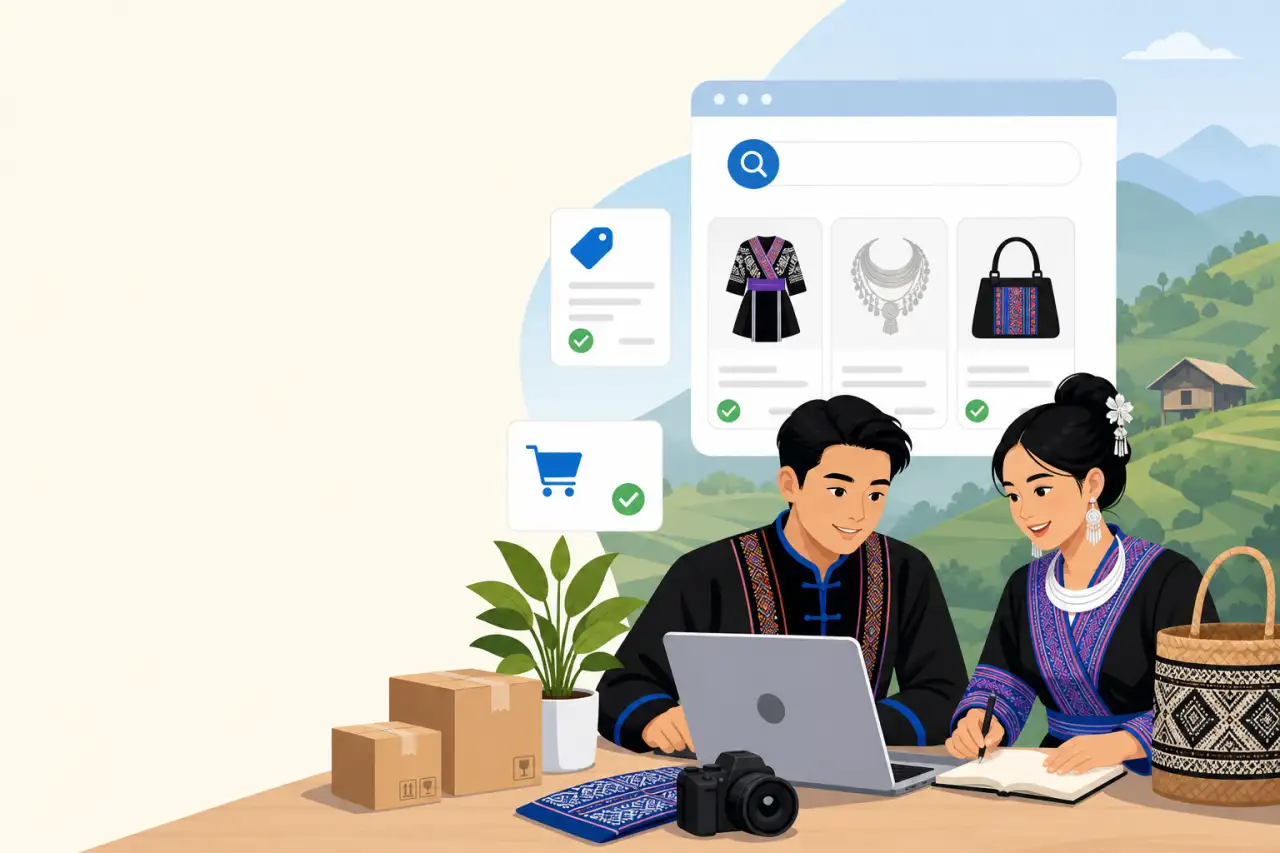
Get Your Products Showing Up When People Search to Buy
TL;DR
Google Merchant Center puts your products in front of people already typing "buy" into Google, and the basic listing is free — the real work is building a feed Google will approve and keeping it accurate week to week.
What Google Merchant Center Actually Does
Google Merchant Center is the tool that takes your product catalog — name, price, size, photo, whether it's in stock — and turns it into listings Google can show in Shopping search results, the Shopping tab, and sometimes right in regular search results with a small product image next to the link. None of that requires you to run a paid ad campaign. It requires a correctly formatted feed and an approved account, and Google will show those free listings to anyone whose search matches what you sell.
It's easy to confuse this with a Google Business Profile, so it's worth being direct about the difference. Your Business Profile is about the business as a whole — your hours, your address, your phone number, the fact that you exist. Merchant Center is about the individual things you sell, one line item at a time. A bakery's Business Profile says "open until 6pm"; that same bakery's Merchant Center feed says "dozen almond cookies, $14, in stock, here's a photo." You need both if you sell physical products, but they answer different questions for the shopper.
Why this matters more for a small, product-based business than it sounds like it should: the free listings aren't ranked by ad spend. They're ranked by relevance and feed quality, the same way regular Google search results are. A one-person shop selling handmade paj ntaub or a home kitchen selling frozen egg rolls by the dozen shows up in the same results as a national retailer selling something similar, as long as the feed is set up right. That's a genuinely different playing field than paid search, where the biggest budget usually wins the top spot. It's the same principle behind outranking competitors on Google in regular search results — relevance and quality can beat a bigger budget.
Free Listings vs. Paid Shopping Ads — Know Which One You're Setting Up
Merchant Center itself is free to use. What costs money is a separate, optional layer: Shopping ads, which run through Google Ads and let you pay to appear higher or more often, with a "Sponsored" label on the listing. You can set up Merchant Center, get your free listings live, and never touch Shopping ads at all — plenty of small sellers do exactly that and it's a completely valid way to use the tool.
The confusion usually happens because both free listings and paid ads pull from the same product feed and show up in the same places on the results page, so from the shopper's side they look almost identical except for that small "Sponsored" tag. On your side, though, they're two different settings you turn on separately, and only one of them has a bill attached. If someone offers to "set up your Google Shopping" and immediately starts talking about a monthly ad budget, ask directly whether they mean the free product listings or paid Shopping ads — those are different services, and you shouldn't pay a setup fee just to get the free version running. Google Shopping isn't the only place to put your catalog either — it's worth thinking through whether you should sell on marketplaces too alongside your own free listings, since each channel reaches a different kind of shopper.

What You Need Before You Touch the Signup Form
Three things make the actual signup painless instead of a multi-day back-and-forth with Google's verification system.
- A Google account tied to your business, not a personal Gmail you also use for family photos — this keeps ownership and billing clean if you ever hand the account to an employee or a family member helping with the business.
- A way to produce a product list Google can read: a spreadsheet with columns for product name, price, availability, and a link to a photo, or, if you're selling through an online store platform, that platform's own export or built-in connection.
- Real photos of your actual product on a plain, uncluttered background — not a stock photo, not a photo with your logo stamped across the middle, not a screenshot from another website.
You'll also need to verify that you own the website or page the products link to, which Google does either through a small file upload, a meta tag in your site's code, or through Google Search Console if you've already got that connected. If your website is being run by a platform like Shopify, Squarespace, Wix, or WordPress (see our guide to setting up your online store on WordPress if that's the platform you're on), this step is usually a checkbox in their settings rather than something you do by hand — worth checking before you assume it's a technical headache, because on most of those platforms it isn't.
One more practical note: your business information in Merchant Center — name, address, phone number — needs to match what's on your actual website and your Google Business Profile. Google cross-checks this, and a mismatch (your website says "Golden Wok Food Truck," your feed says "Golden Wok LLC") is one of the more common, avoidable reasons an account gets flagged during review.
Building a Product Feed That Google Will Actually Approve
The feed is the actual list of what you sell, formatted the way Google's system expects to read it. If you're on an e-commerce platform, this is mostly automatic — the platform generates the feed from your existing product pages and keeps it synced. If you're managing this by hand through a spreadsheet, a handful of fields matter more than the rest:
- A specific, accurate product title (not "Cookies," but "Almond Shortbread Cookies, Box of 12")
- A price that matches what a customer would actually pay on your site
- An availability status that's actually true right now
- A GTIN or brand identifier if your product has one — homemade and small-batch goods usually won't, and that's fine, Google has a path for that
Generic product titles are the single most common reason a feed technically uploads but the listings underperform. "Handmade Bag" competes against thousands of other handmade bags. "Hand-Embroidered Paj Ntaub Crossbody Bag, Navy" competes against almost nothing, because it describes exactly what the product is in the words someone searching for it would actually type. Write titles the way you'd describe the item to a customer standing in front of you, not the way you'd file it in your own inventory system.
Categorize each product correctly using Google's product category system rather than leaving it blank or guessing loosely. A specific, correct category is part of how Google decides which searches your product is relevant to — get it wrong and your egg rolls might get grouped somewhere a hungry shopper never looks.
Photos and Descriptions That Actually Get Clicked
Google will reject a photo that has:
- A watermark
- Promotional text
- A collage of multiple angles crammed into one image
- A plain white graphic standing in for a real product shot
Beyond just getting approved, the photo is doing the actual selling — it's usually the first and sometimes only thing a shopper looks at before deciding to click. A single, well-lit photo of the actual item, shot straight on, on a clean background, consistently beats a busier or more "designed" image. If you're photographing food, natural light near a window in the late morning generally does more for you than any ring light — no special equipment required.
The product description matters too, even though it's less visible than the title and photo. Write it for the person who's already interested enough to click, not for search engines — real detail about size, ingredients or materials, what's included, and anything a buyer would want to know before purchasing. "Made fresh weekly, ships Tuesdays and Fridays only" is the kind of line that prevents a disappointed customer and an angry review, and it costs you nothing to include.

Keeping the Feed Current Without It Becoming a Second Job
A feed that's accurate on day one and stale by week three does more harm than good — a shopper who clicks through to a sold-out item or a price that's since changed loses trust fast, and Google's own system penalizes feeds with a pattern of inaccurate listings by showing them less often. This is the part that actually determines whether Merchant Center is worth the setup effort long term, more than the initial signup does.
If you're managing inventory and the feed separately — updating a website by hand and a spreadsheet by hand — build a standing habit around it: the same day you 86 an item or run out of stock, update the feed, not "sometime this week." For a seasonal or small-batch business, it's often easier to mark an item "out of stock" the moment it sells out rather than trying to predict and pre-schedule availability windows.
The lower-effort long-term fix is switching to a platform where inventory and the product feed are the same system, so updating one updates the other automatically. Most mainstream e-commerce platforms include this as a built-in Google Shopping connection rather than a paid add-on — worth checking your platform's settings before assuming you need a separate tool or a developer to wire it up.
Common Rejection Reasons and How to Fix Them Fast
Most first-time Merchant Center rejections fall into a short list of fixable problems rather than anything structurally wrong with the business.
- Mismatched business information between your website, your Business Profile, and your Merchant Center account is one of the most frequent — go through all three and make sure the name, address, and phone number are identical, not just similar.
- Missing or unclear return and shipping policy pages on your website is another; Google expects to find these linked from your site, in plain language, before it'll approve certain listings, so a simple, honest returns page pays for itself here even if you rarely get a return.
- Pricing mismatches — where the price in your feed doesn't match the price a shopper actually sees when they land on your product page — will also trigger a rejection or a later suspension, and this one is worth double-checking any time you run a sale, since a feed that isn't updated in sync with a temporary discount creates exactly this problem. Getting the underlying number right in the first place helps too — see our guide to pricing your products for the marketplace if that's still something you're working out.
- Lastly, missing shipping or tax settings for your region can quietly hold a whole feed back from showing, even when every individual product entry looks fine — this lives in your account settings rather than the product feed itself, so it's easy to overlook if you're focused on getting the products right.
When something does get rejected, Merchant Center tells you specifically which policy it violated and which products triggered it — read that message rather than guessing, fix the specific issue, and resubmit. Most rejections resolve in one pass once you know exactly what tripped it.
When It's Actually Worth Turning On Paid Shopping Ads
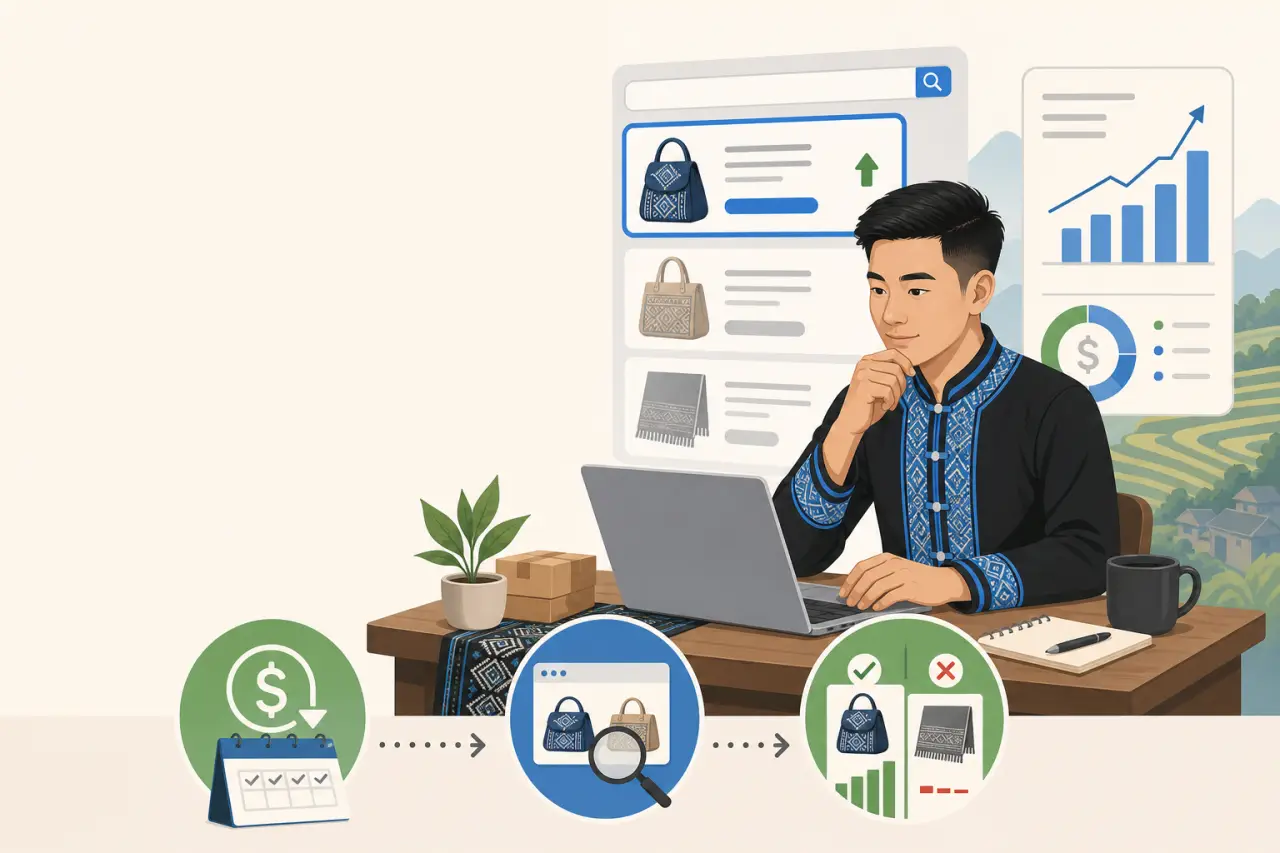
Free listings are the right place to start for almost every small seller, and for a lot of small, local, or niche product businesses they're genuinely enough on their own — there's no rule that says you have to graduate to paid ads. The case for eventually turning on a small Shopping ads budget is narrower and more specific: you'd want it if your free listings are already showing up and getting some traffic, but you're competing directly against sellers with much larger catalogs for the exact same search terms, and a small paid push would meaningfully change where you land on the page.
If you do try it:
- Start with a genuinely small daily budget.
- Run it for a couple of weeks.
- Watch which specific products actually get clicks and sales versus which just burn spend with no results.
- Narrow your budget to only the products that are proving themselves.
Don't spread a small budget evenly across your whole catalog hoping something sticks; put it behind the two or three items that are already your best sellers or that have the widest margin, since those are the ones a modest ad spend is most likely to pay back.
Questions people ask
What's the difference between Google Merchant Center and Google Business Profile?
Business Profile is about your business itself — your hours, address, phone number. Merchant Center is about individual products you sell, with details like price, photo, and stock status. A bakery's Business Profile says when it's open; its Merchant Center feed lists specific items like "dozen almond cookies, $14." You need both if you sell physical products.
Do I have to pay for Google Shopping?
Google Merchant Center itself is free to use. The free listings show up based on relevance and feed quality, not ad spend. Paid Shopping ads are optional — a separate layer through Google Ads that lets you pay to appear higher or more often. Many small sellers use only the free listings and never set up paid ads.
What should I put in my product title?
Write titles the way you'd describe the item to a customer standing in front of you. Instead of "Cookies," try "Almond Shortbread Cookies, Box of 12." Specific titles compete against fewer products and match what people actually search for. Generic titles are the most common reason free listings underperform.
How do I keep my product feed current without it taking over my life?
If you update manually, make it a habit: update the feed the same day you run out of stock or change a price, not "sometime this week." Better long term: use an e-commerce platform where inventory and the product feed sync automatically, so updating one updates the other.
Written by
Hmong Network Team
Directory & Digital Services
We run the Hmong Network directory and do the web design and SEO/AEO work behind the results in our case studies. These guides come out of that same hands-on work with Hmong-owned businesses — not secondhand research.
